

How to Run the Llama Locally
on a Canopy Wave VM?
How to Run the Llama Locally on a Canopy Wave VM?
Table of Contents
How to Run the Llama Locally on a Canopy Wave VM?
Ⅰ. Why Deploy and Run a Large Language Model Locally?
1. Data Privacy & Security
When running an LLM locally, no user data is collected and no user actions are tracked. All your chat data stay on your own computer and are never shared with any AI or machine-learning servers.
2. Deep Customization of Models & Business Logic
- Domain Adaptation: Fine-tune a general-purpose model with industry-specific knowledge (e.g., medical terminology, legal clauses) to generate more accurate domain content.
- Feature Extensions: Integrate with local databases, knowledge bases, or business systems (CRM, ERP, etc.) to deliver private intelligent Q&A, document analysis, and other bespoke functions.
- Full Control: Freely modify model architecture, inference logic, and output formats without being constrained by public API limitations.
3. Technical Autonomy & Controllability
- Version Pinning: Prevent unexpected business-logic failures caused by cloud-side model updates.
- Audit Transparency: Gain complete visibility into the model's input/output stream to satisfy security-audit requirements.
- Vendor Independence: Reduce reliance on any single cloud provider (e.g., OpenAI).
4. Development & Research Needs
- Model Experimentation: Researchers can freely tweak model structures and training strategies without cloud-imposed quota limits.
- Edge Deployment: Explore lightweight model variants for deployment on mobile phones and IoT devices.
Ⅱ. Create a virtual machine using the Canopy Wave Cloud Platform.
1.Click the "Launch GPU VM" button to create a virtual machine.
Image loading in progress...
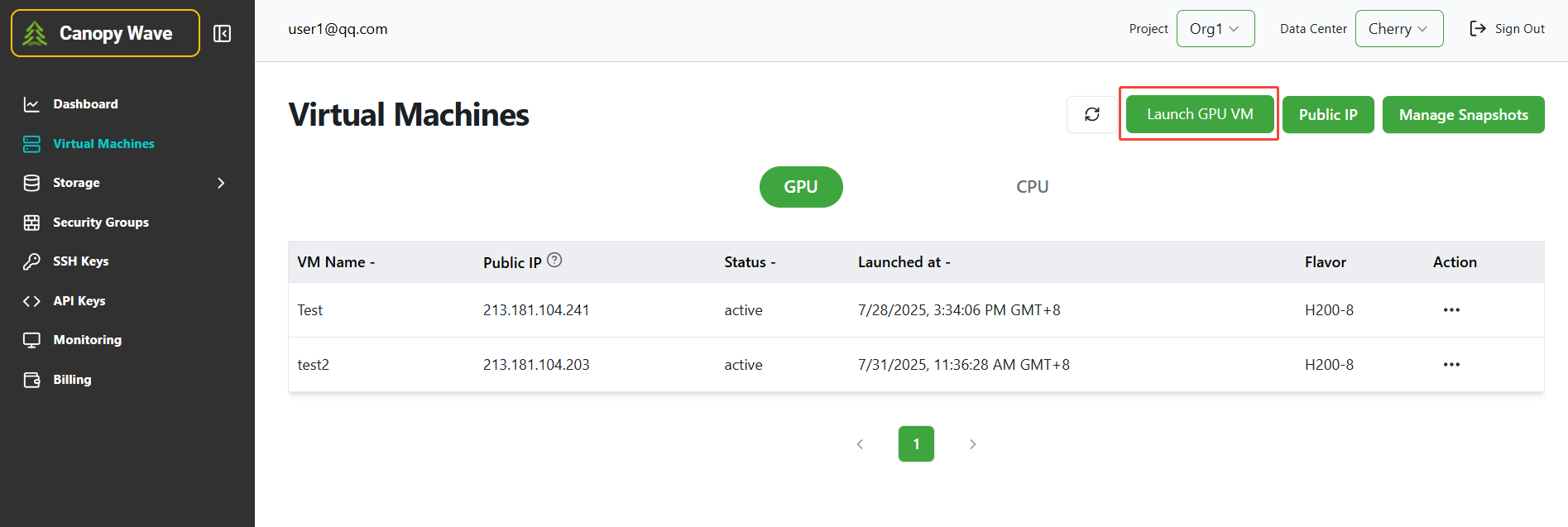
2.Click the "Continue" button.
Image loading in progress...
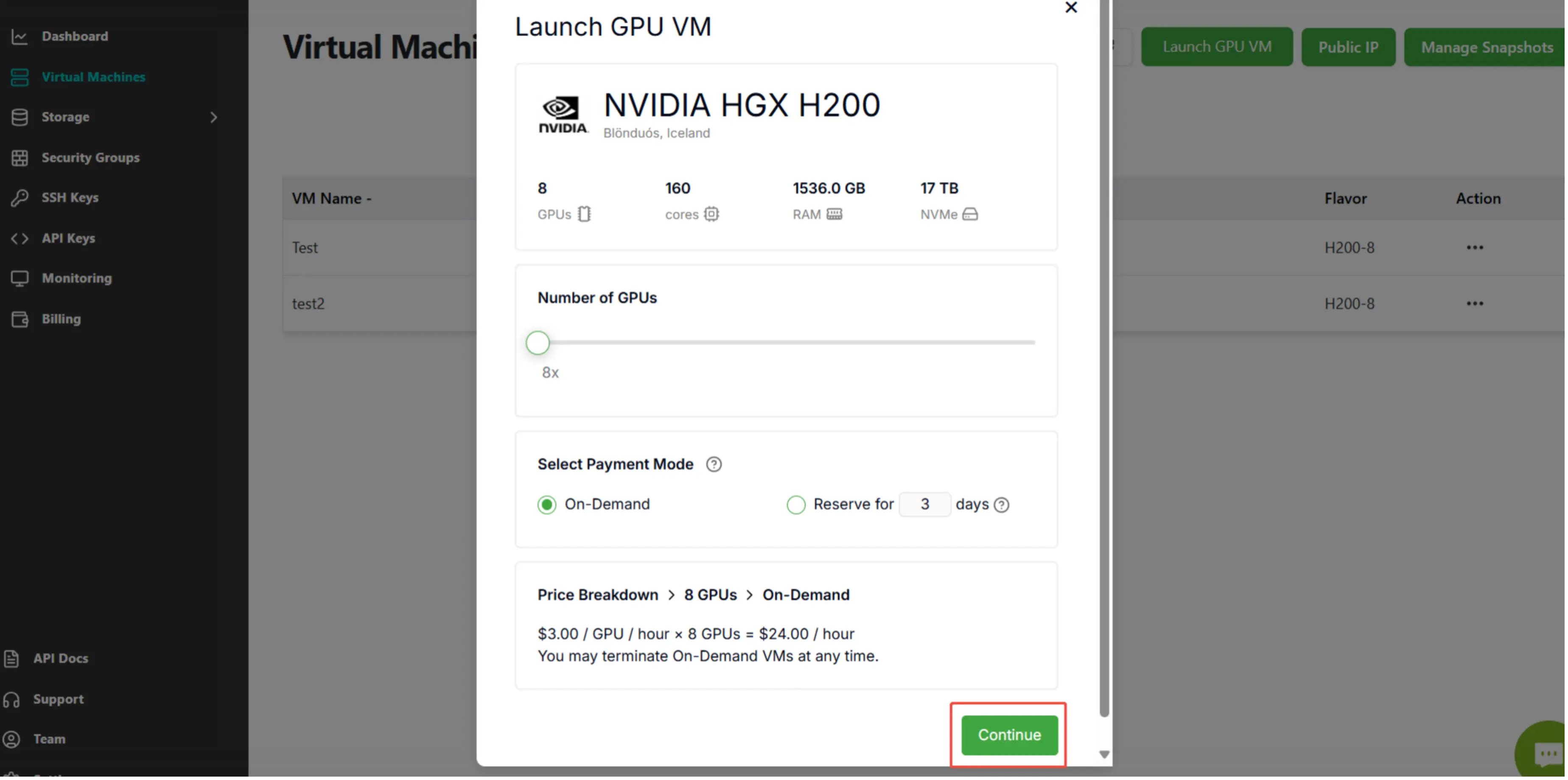
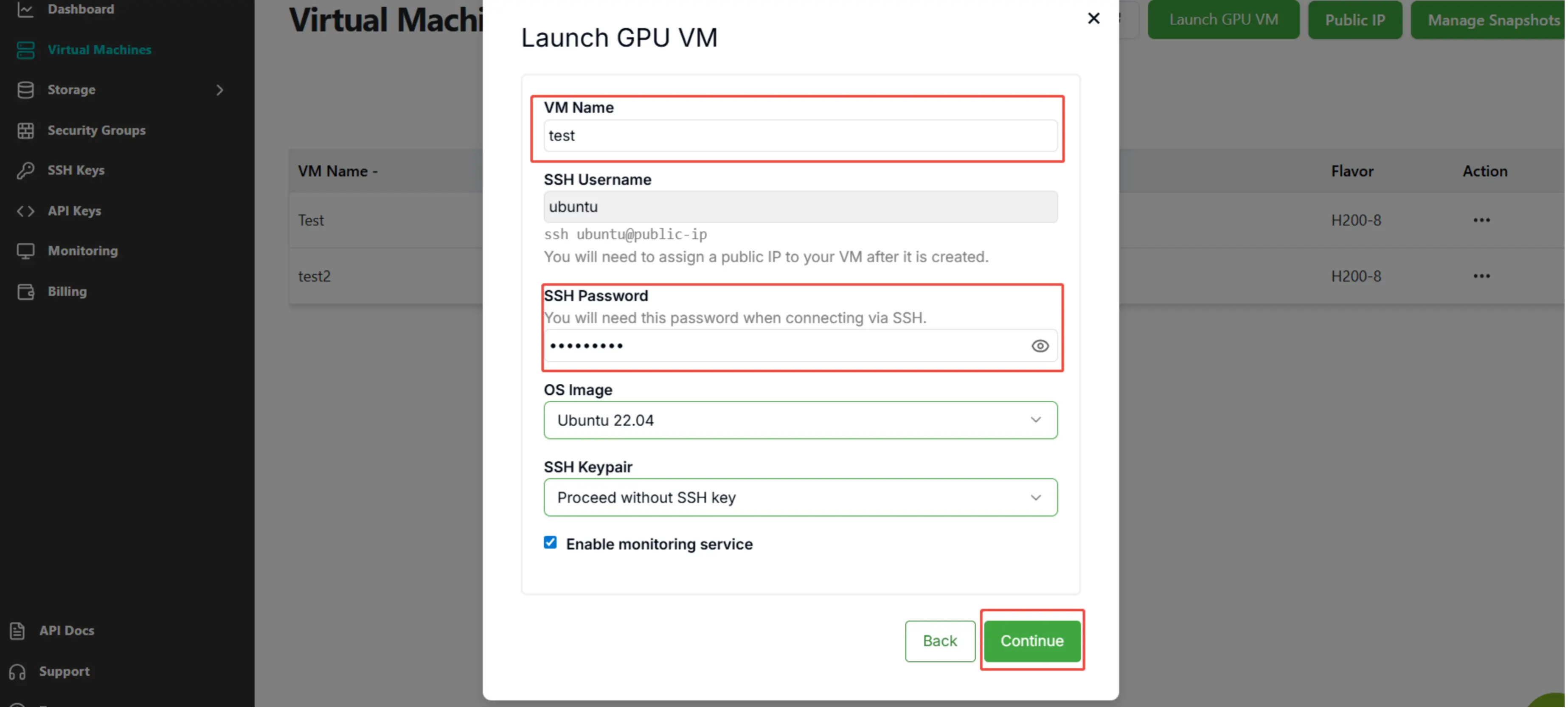
3.Enter "VM Name" and "SSH Password", then click the "Continue" button.
Image loading in progress...
Ⅲ. Deploying Llama Locally
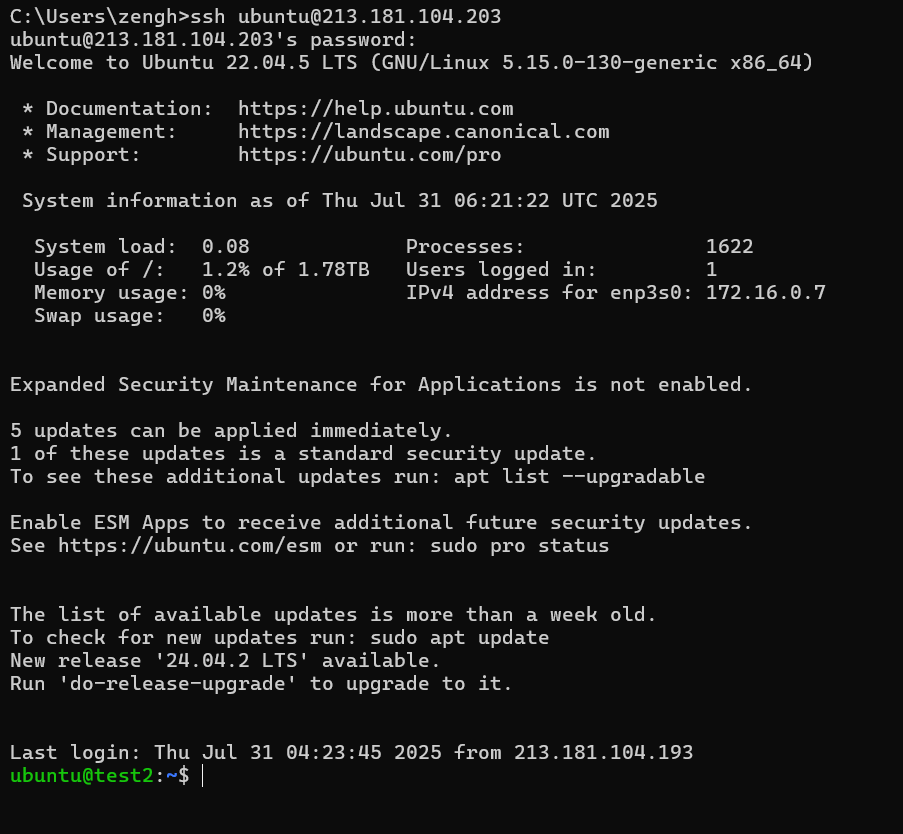
Connect to the virtual machine via SSH. Open a terminal (for example, press Win+R, type cmd, and hit Enter). In the terminal, type ssh username@IP and press Enter. When prompted, enter your SSH password. Note: The password characters will not be visible as you type.
Image loading in progress...
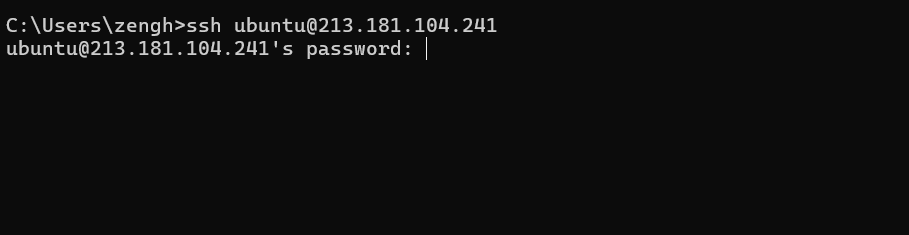
Image loading in progress...
Download the Ollama platform to run the large language model.
Execute the command.:
curl -fsSL https://ollama.com/install.sh | shImage loading in progress...
Download and run llama
Copy the llama model and run it.
Image loading in progress...
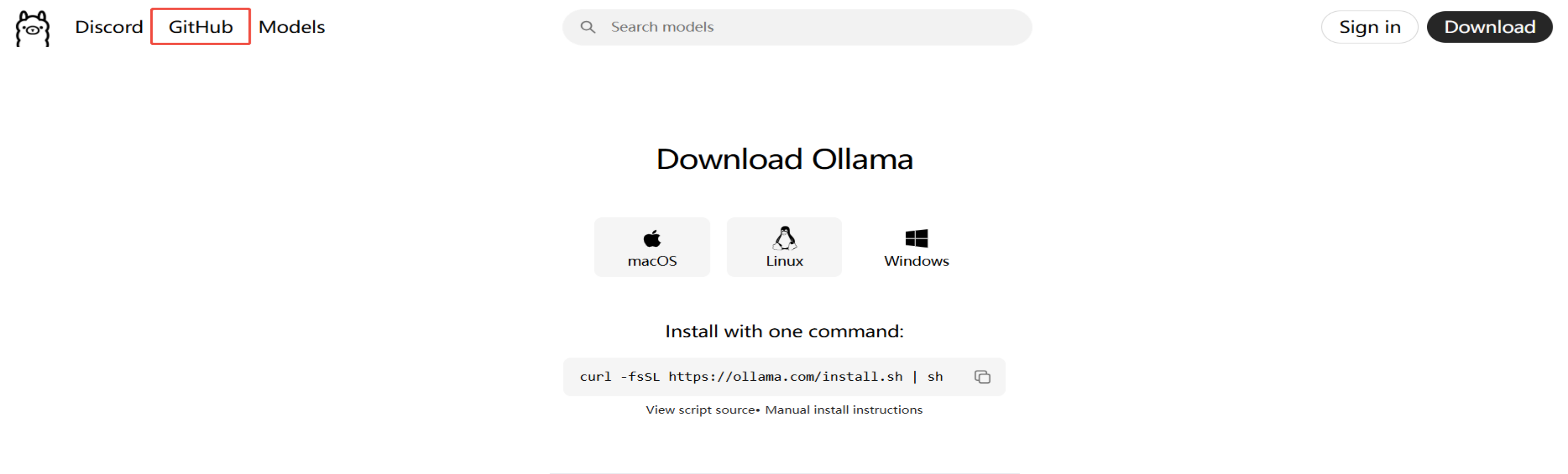
Image loading in progress...
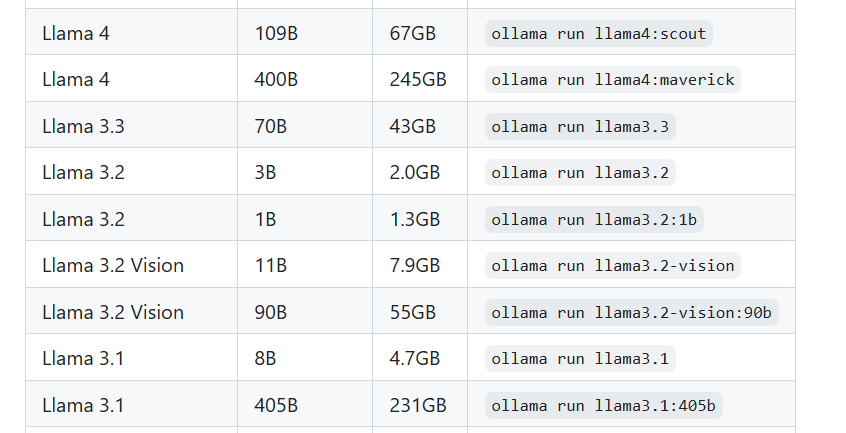
Image loading in progress...
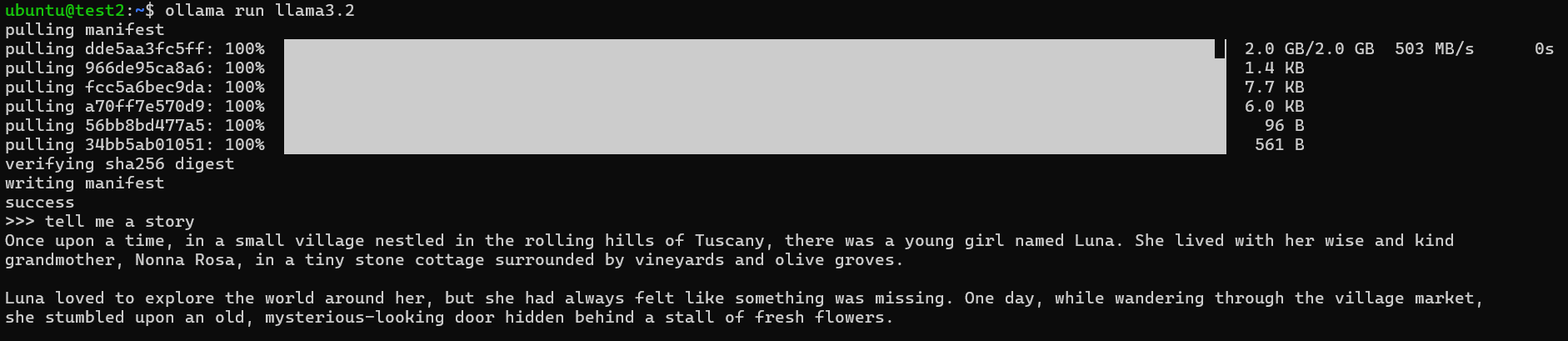
You can now interact with your local large language model.


Share


