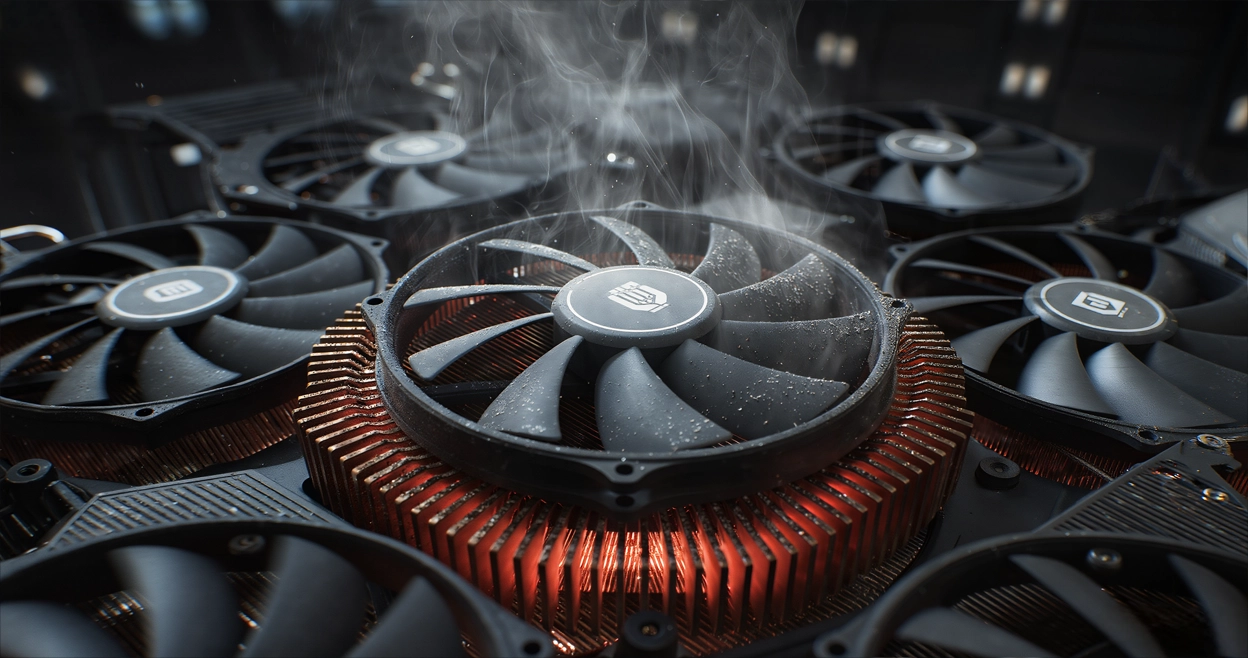
At the heart of the high-performance computing and artificial intelligence wave, GPUs play an irreplaceable role, driving complex model training and inference. However, for many enterprise IT personnel or researchers responsible for operations and maintenance, a nerve-wracking scene is common: opening a server chassis or glancing at a monitoring screen only to find that the fans on a GPU card worth tens of thousands of dollars are motionless.
"The GPU fan is not spinning!" --- This discovery is enough to make anyone reliant on computing power uneasy. But do not panic; not all instances of stationary fans indicate hardware damage. As a company specialized in building and managing high-performance NVIDIA GPU clusters, Canopy Wave will provide an in-depth analysis of the truth behind this phenomenon, reveal its potential impacts, and offer a professional resolution framework.
I. Multiple Causes of Fan Failure
Understanding why the fan stops is the first step to solving the problem. The reasons can be broadly categorized as follows:
- • Low-Temperature Idle: When the GPU is idle or under very low load, its core temperature is far below the threshold for fan activation (typically around 40-50°C). To reduce noise, minimize wear, and save energy, the fans may completely stop spinning. This indicates a healthy, well-designed GPU, not a malfunction.
- • Stepwise Speed Adjustment: As the GPU computational load increases and temperatures rise, the fans will gradually accelerate from a stopped state to achieve precise cooling.
- • Driver Conflicts or Corruption: Corrupted or incompatible graphics drivers may prevent correct issuance of fan control commands.
- • Firmware Issues: Bugs in the GPU firmware can disrupt the normal logic of the fan control module.
- • Third-Party Software Interference: Certain overclocking software or improperly configured custom fan curves might override the default thermal control policy, manually setting and locking the fan speed to zero.
- • Operating System Power Management: Inappropriate system power plans may limit PCIe device performance, indirectly affecting fan response.
- • Loose or Disconnected Fan Power Cable: During transportation or maintenance, the cable connecting the fan to the GPU heatsink may become loose.
- • Physical Damage to the Fan Itself: Bearings worn out from long-term operation, dried-up lubricant, or foreign objects obstructing the blades can prevent the fan from starting.
- • Fan Control Circuit Failure on the PCB: This is a more serious hardware issue where the circuit components on the GPU board responsible for supplying power and sending control signals to the fan are damaged.
II. The Chain Reaction Caused by Fan Stoppage
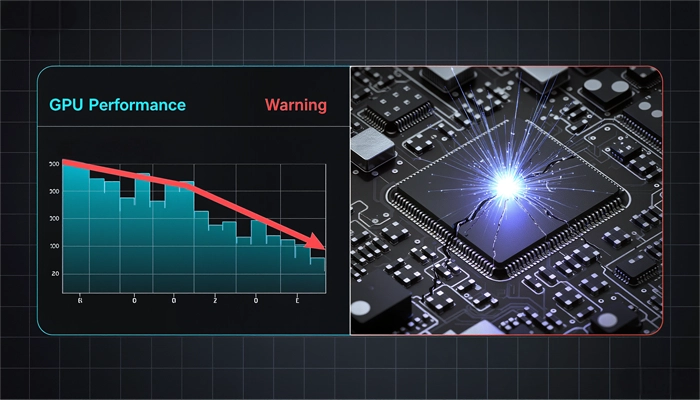
Once the fan remains non-operational abnormally, especially under high load, it can trigger a series of serious consequences -- the destructive potential should not be underestimated.
- ◦ Core Solder Joint Failure: High temperatures can cause solder joints to degrade or crack, leading to poor contact between the GPU and motherboard, causing system instability or complete failure.
- ◦ Memory Degradation and Errors: GDDR/HBM memory is extremely sensitive to temperature. Overheating causes the data error rate to increase sharply, directly affecting the accuracy of computational results. Identifying such issues in large-scale clusters is extremely costly.
The heat generated by an overheating GPU can spread throughout the entire server chassis, raising the ambient temperature and thereby endangering the stable operation of adjacent CPUs, hard drives, and other GPUs, potentially leading to the failure of the entire node.
III. Systematic Plan from Diagnosis to Repair
Faced with a non-spinning fan, we recommend following a diagnostic process moving from software to hardware, simple to complex.
- 1. Confirm Workload: First, check if the GPU is actually under high load. Use the nvidia-smi command to check utilization and temperature.
- 2. Apply Load Test: Run a lightweight stress test program and observe whether the fan starts spinning after the temperature exceeds 50°C.
- 3. Check Drivers and Control Software: Update to the latest official driver version. Completely close any third-party overclocking and control software to eliminate interference.
- 4. Monitoring Tool Verification: Continuously use nvidia-smi or log into the IPMI interface to monitor dynamic changes in temperature and fan speed.
- 1. Safety First: Ensure the device is powered down and take anti-static precautions.
- 2. Visual Inspection: Check if the fan cables are securely connected to the ports on the GPU board.
- 3. Manual Test: With the power off, gently flick the fan blade with your finger to feel for significant resistance or sticking.
- 4. Check Connections Inside Chassis: Ensure all power and data cables related to the GPU and its slot are secure.
IV. Timing and Criteria for Applying for a Supermicro RMA
In enterprise and data center environments, our GPUs are typically integrated into chassis from top-tier server manufacturers like Supermicro. When you are certain it is a hardware failure, you need to initiate the RMA process.
- 1. Fan Stops Spinning Under High Load: The fan remains at 0 RPM even when the GPU core temperature is significantly above 60°C, approaching the thermal throttle threshold.
- 2. Completed Thorough Software Troubleshooting: You have already tried testing under different operating systems with clean driver installations, and the problem persists.
- 3. Clear Evidence of Hardware Fault: Obvious physical damage to the fan, abnormal noises, or no response from the fan motor despite confirmed good cable connections.
- 4. nvidia-smi Reports Errors: The command output includes error codes related to the fan or cooling.
- 5. Server Log Alerts: The Supermicro BMC/IPMC/IPMI management interface logs hardware alerts concerning GPU overheating or fan failure.
- • Record Detailed Information: Have the server product model, serial number, and the specific model and serial number of the faulty GPU ready.
- • Provide Diagnostic Evidence: Supply Supermicro technical support with a detailed fault description, screenshots of troubleshooting steps taken (like nvidia-smi output, temperature graphs), and error logs from IPMI. Clear evidence can significantly expedite the RMA approval process.
V. Canopy Wave: Your Solution to GPU Fan Issues
At Canopy Wave, we deeply understand the importance of stable, efficient computing power for AI innovation. The tedious processes of diagnosis, troubleshooting, and RMA mentioned above are precisely the daily challenges we resolve for our clients through professional services.
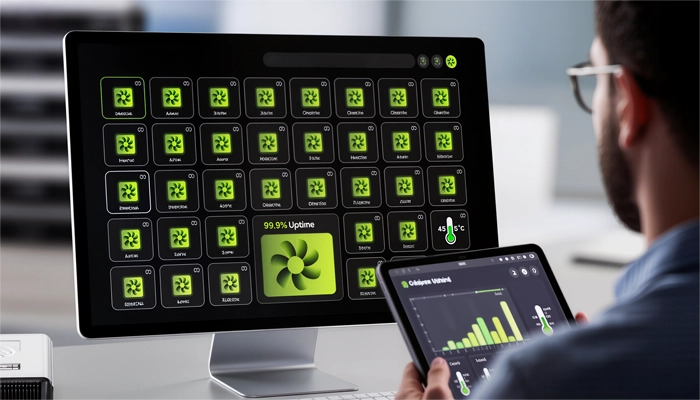
- • Our Intelligent System: Our self-developed GPU cluster monitoring platform features real-time monitoring and hardware health functionality. It displays the fan speed and temperature of each GPU in real-time.
- • Our Professional Technical Team: Composed of experts in RoCE/IB networking and system architecture, our team possesses extensive experience in large-scale cluster operations and maintenance. Whether it's software tuning or hardware failure localization, we can respond swiftly.
- • Our Commitment: 24/7 technical support ensures that hardware anomalies occurring at any time are promptly addressed. We have established close cooperative relationships with hardware vendors like Supermicro, enabling us to efficiently manage and execute the entire RMA process, minimizing customer business interruption time.
VI. Conclusion
Mastering the correct knowledge for identification and appropriate response strategies is an essential skill for enterprises harnessing high-performance computing. However, by having Canopy Wave handle these complex and time-consuming operational tasks, your team can focus more on AI model development and business innovation itself.
While you worry about whether the fan is spinning, we have already ensured the stability and efficiency of your entire GPU cluster.
Explore Canopy Wave's GPU Solutions, Experience High-Performance Computing Without Worry.