GPU Card Drop Causes and
How to Troubleshoot
GPU Card Drop Causes and How to Troubleshoot
Table of Contents
GPU Card Drop Causes and How to Troubleshoot
Introduction
In our daily lives, we often encounter GPU dropouts when using computers. Therefore, this article primarily explains the causes and how to troubleshoot them.
(I) Hardware-Related Causes
Overheating
During high-load operation, the GPU generates a significant amount of heat. If the cooling fan stops working, the heatsink becomes severely clogged with dust, or the thermal paste dries out and loses its thermal conductivity, the GPU temperature will rapidly soar. When the temperature exceeds its critical tolerance limit, to protect the hardware, the GPU will automatically throttle its performance or shut down entirely, causing it to disappear from the system.
Connection Failure
The stability of the connection between the GPU and the motherboard's PCIe slot is crucial. Vibrations during daily use or frequent insertion and removal can cause poor contact between the GPU and the slot, hindering signal transmission and subsequently triggering a card drop. Additionally, if the external power supply connector for the GPU is loose and cannot provide stable power, it can also cause the GPU to drop.
Insufficient Power Supply
High-performance GPUs have substantial power requirements. If the power supply unit (PSU) lacks sufficient wattage, it cannot provide adequate power during high GPU load. Alternatively, an aged or damaged PSU with unstable output voltage, or poor contact between the power connectors and the GPU, can all cause the GPU to drop due to power issues.
Hardware Damage
After prolonged continuous use, key hardware components such as the GPU core or VRAM may fail. For example, faulty VRAM modules can interfere with normal data read/write operations; damage to the core chip can completely disable the GPU.
(II) Software-Level Issues
Driver Issues
The driver acts as a bridge between the operating system and the GPU hardware. Outdated drivers may not fully utilize the GPU's performance potential and might be incompatible with new operating systems or applications; corrupted drivers can introduce errors during data transmission, preventing the GPU from functioning correctly; Installing a driver version that is not compatible with your specific GPU model is a frequent cause of failures.
Operating System Instability
Corrupted system files within the operating system can disrupt the system's normal mechanism for recognizing and utilizing the GPU. Different operating system versions vary in their level of support for GPUs, and poor compatibility between the OS and the GPU driver can also easily lead to card drops.
Application Conflicts
Some applications might excessively occupy GPU resources during operation, causing the GPU load to become too high. Or, applications with inherent bugs might conflict with the GPU driver, preventing the GPU from working according to normal commands and ultimately causing a drop.
(III) Environmental Factor Interference
Electrostatic Discharge (ESD) Threat
In dry environments, both the human body and equipment can easily accumulate static electricity. When an object carrying static electricity comes into contact with sensitive electronic components like the GPU, a sudden discharge when touching the GPU can permanently damage its sensitive electronic components.
Electromagnetic Interference (EMI)
When powerful electromagnetic equipment (such as high-power motors or transformers) is present near the GPU, the strong electromagnetic interference they generate can severely affect the stability of signal transmission between the GPU and the motherboard. Signals being interfered with during transmission can lead to errors or interruptions, subsequently causing the GPU to drop.
Troubleshooting
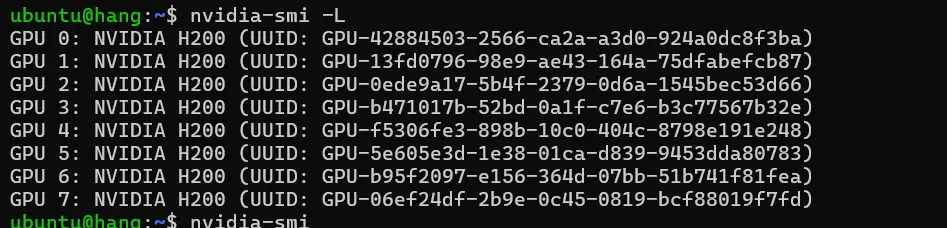
A total of eight GPU cards were tested this time.
Users can primarily check for GPU drops via the command line.
Step 1: Access the system's command line, enter the username and password.

Step 2: Enter `nvidia-smi -L` to view the GPU serial numbers and check if all 8 GPUs are detected.
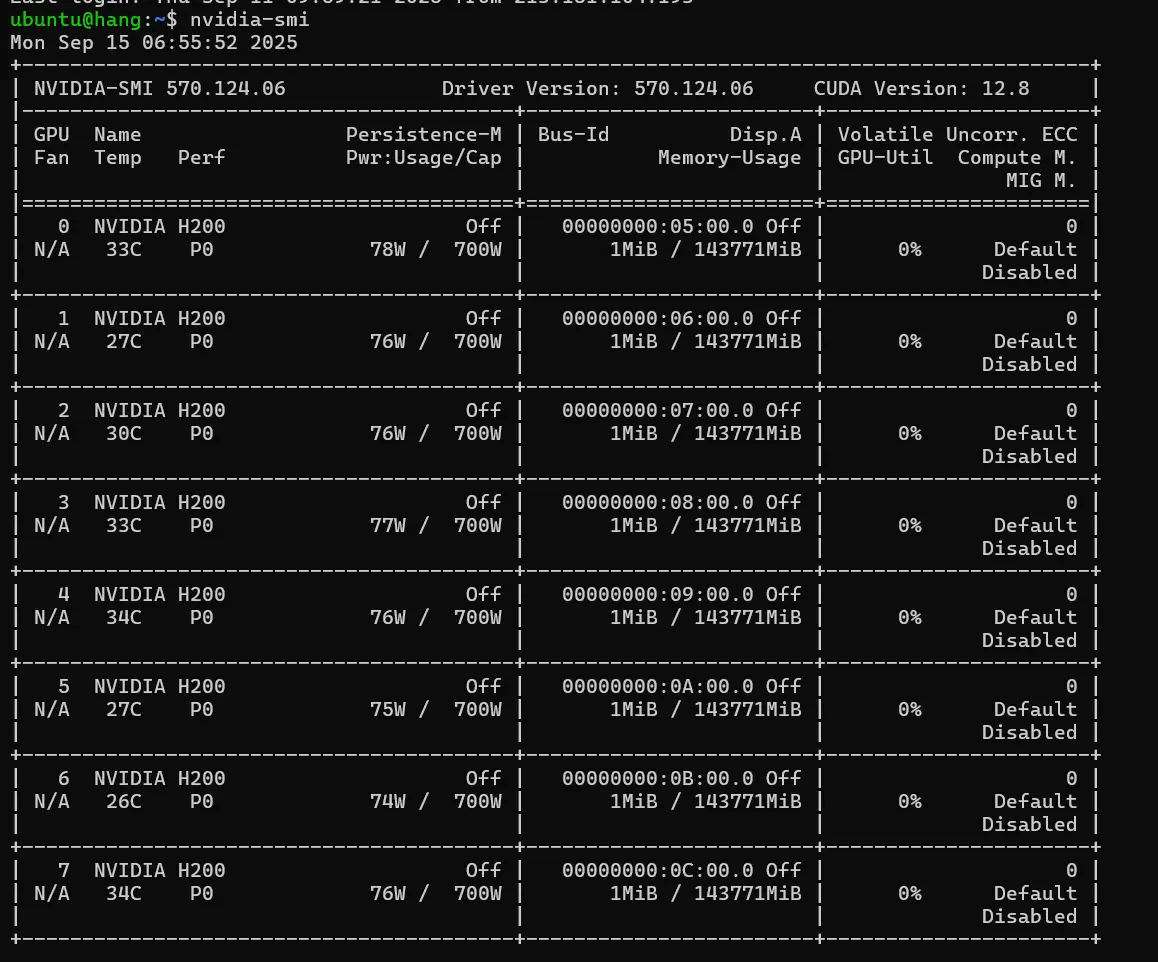
Step 3: Enter `nvidia-smi` to monitor the status of all GPUs and view relevant information about GPU operation.
Step 4: If a dropped GPU is suspected, you can query its Serial Number (SN) for subsequent replacement (here we assume the first card, GPU 0, has dropped). The command is: `nvidia-smi -a | egrep "GPU 00000000:|Serial Number|Parity"`
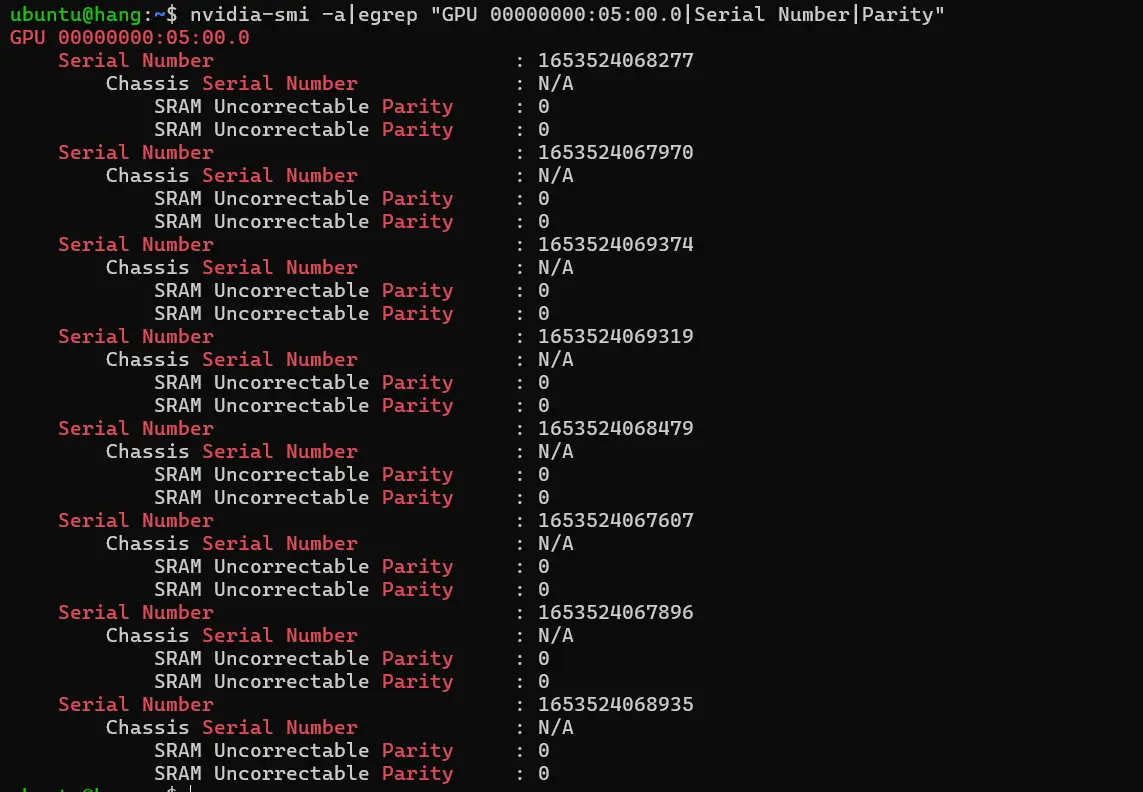
Step 5: After finding the SN, you can try reseating the card to see if the drop was caused by poor contact. If the GPU cannot be restored, you can provide the SN to NVIDIA official support and inquire with their customer service.
Share