

1. How to Subscribe
- Log in to your Canopy Wave account.
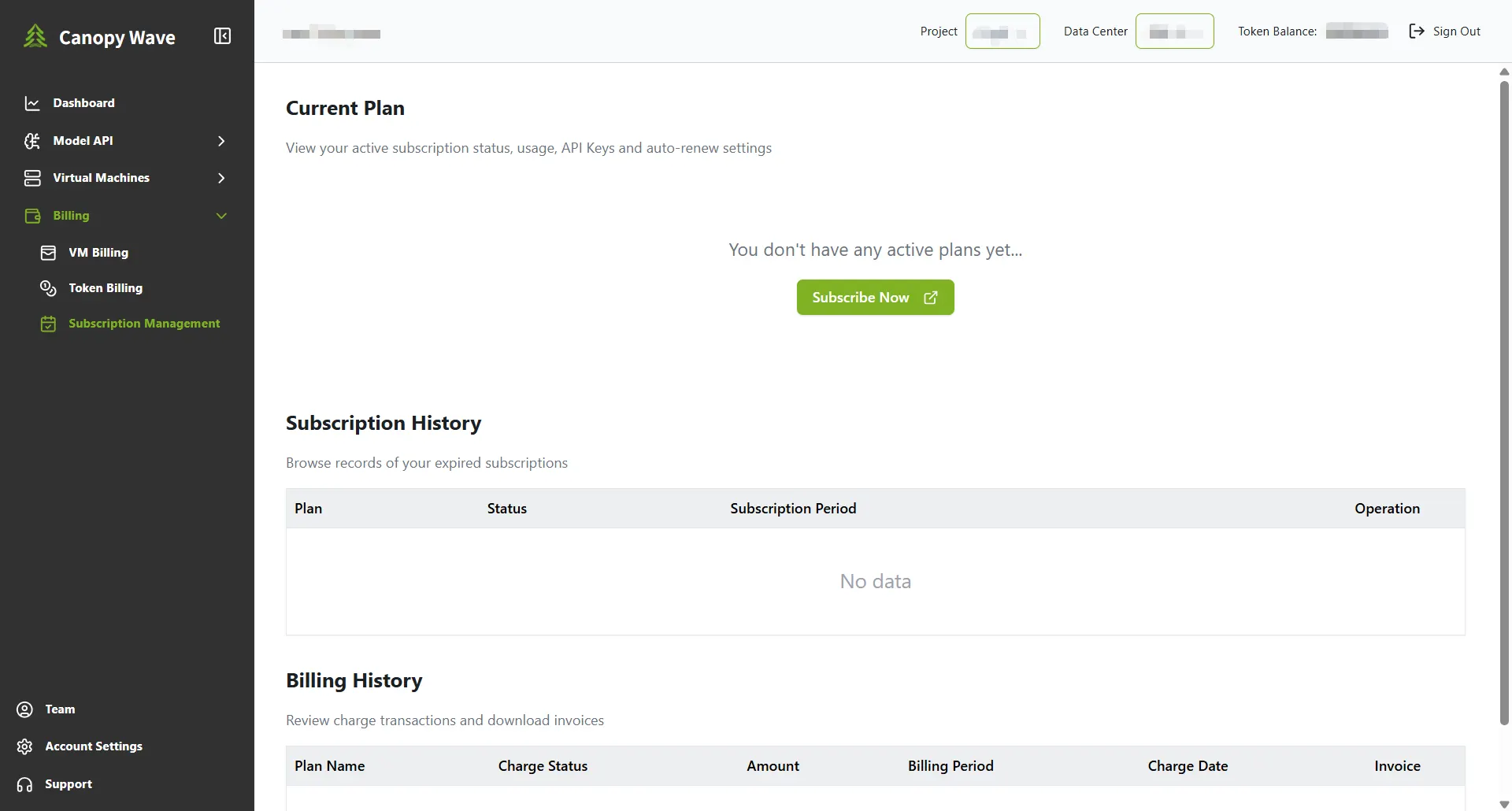
- Go to Dashboard → Model API → AI Models to browse available subscription plans. Alternatively, if you have no active plans, go to Billing → Subscription Management and click Subscribe Now.
- Select the desired plan and click Subscribe.
- Bind a credit card (currently the only supported payment method):
- Select the plan
- Bind your credit card
- Enter card information
- Confirm payment
- Check the box to agree to the terms and conditions.
- Complete the payment.
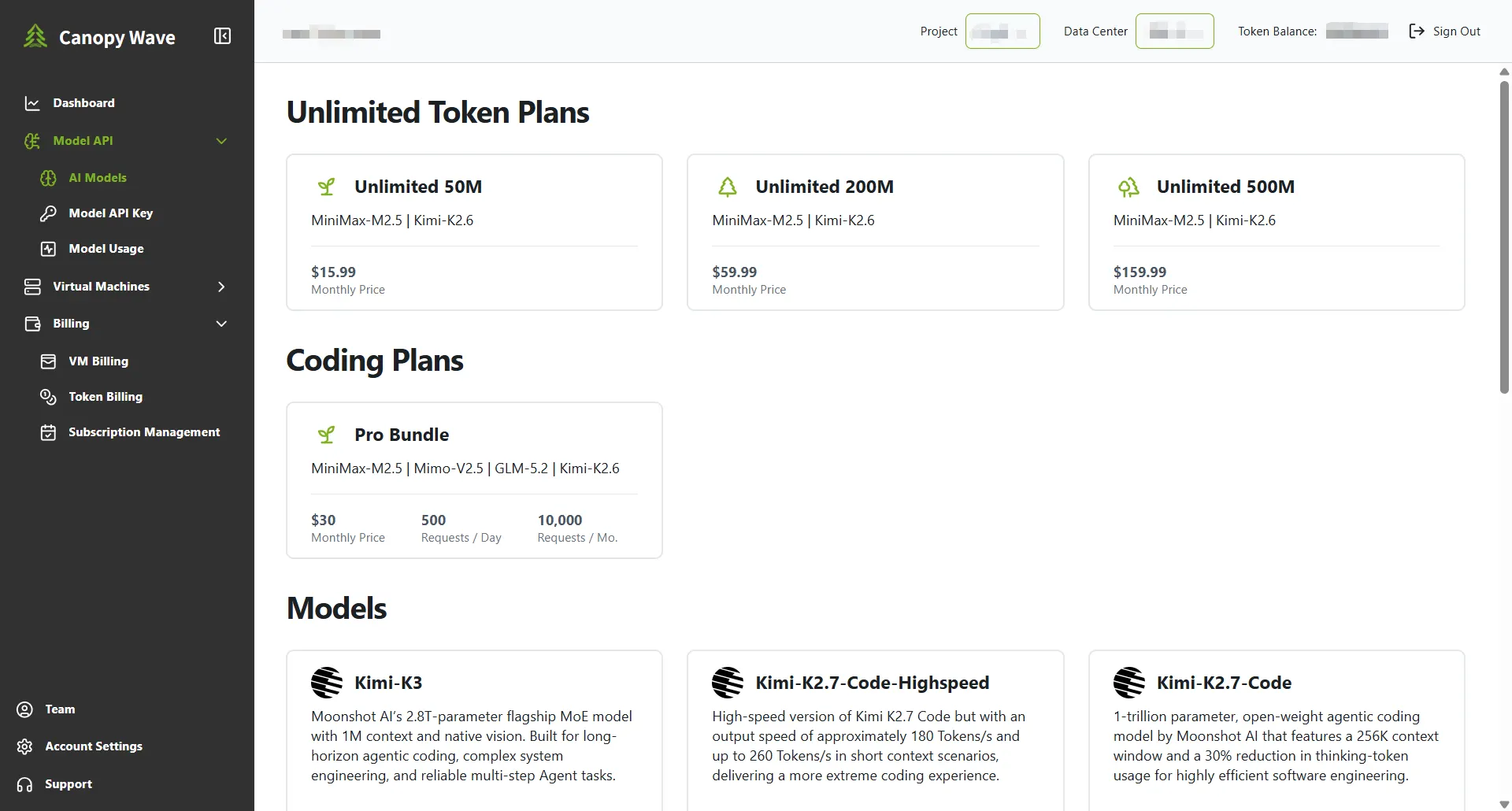
Plans are activated immediately after successful payment. By default, plans are set to monthly auto-renewal.
2. Viewing Current Plans
- In the left sidebar, go to Billing → Subscription Management.
- The Current Plan section displays all your active subscriptions as cards.
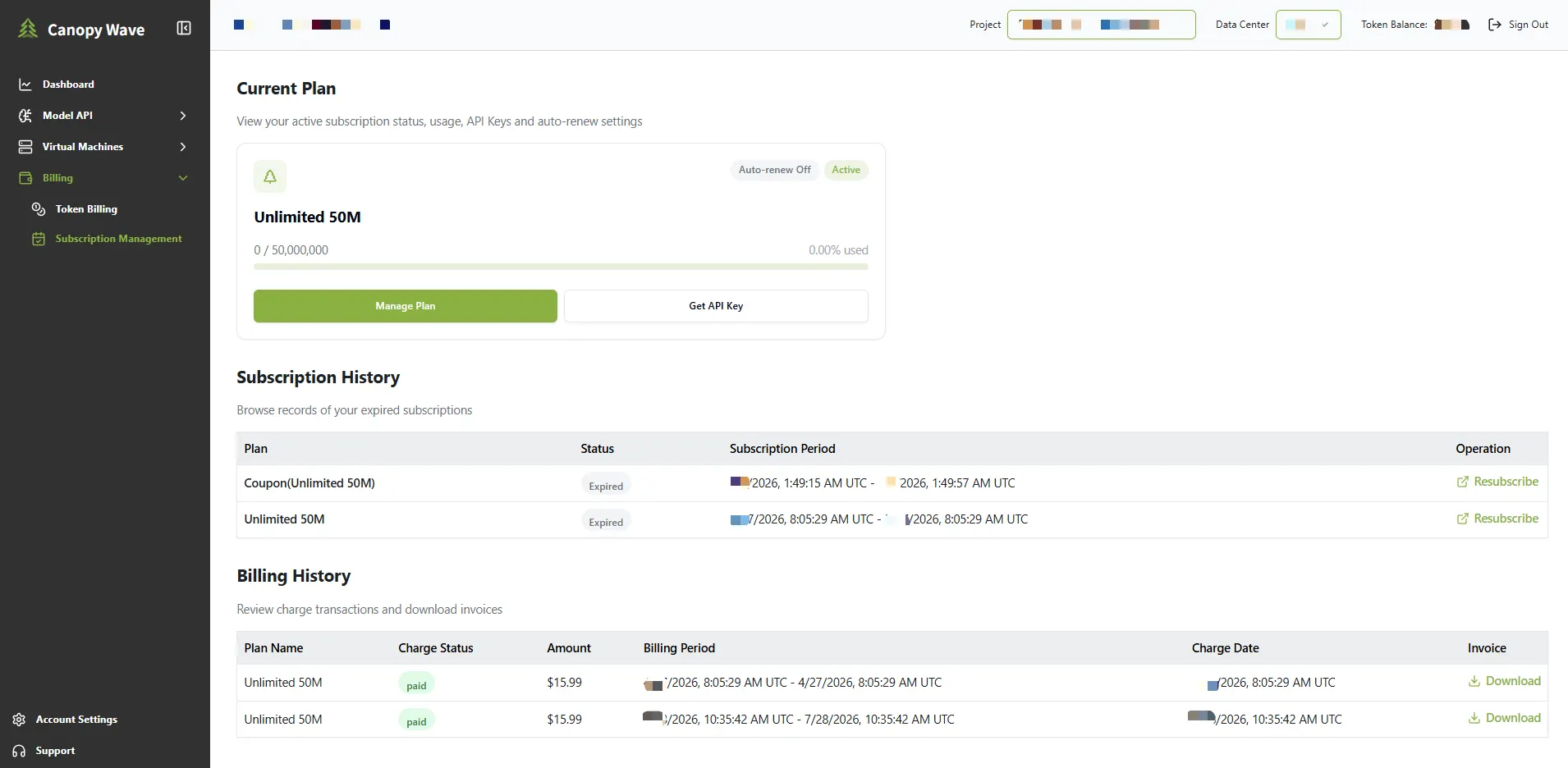
Each card shows:
- Plan name (e.g. Fast Bundle or Pro Bundle)
- Auto-renew status ( Auto-renew On or Auto-renew Off)
- Active badge
- Usage progress:
- Monthly usage
- Usage since 12:00 AM UTC (daily quota)
- Action buttons:
- Manage Plan — opens the detailed management panel
- Get API Key — retrieves the API key for this plan
If you have no active plans, the page will display “You don't have any active plans yet…” with a Subscribe Now button.
3. Managing a Plan
- On the Current Plan page, click Manage Plan on the desired subscription card.
- The plan details panel will open, containing the following sections:
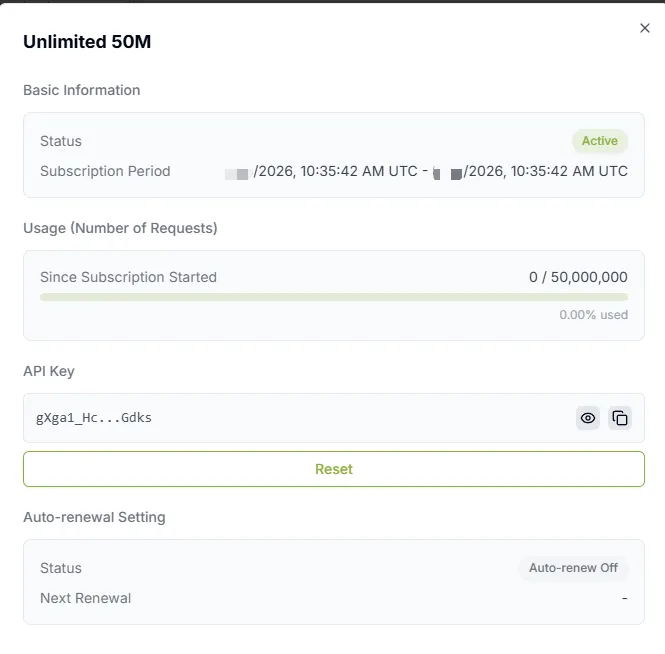
Basic Information
- Status (Active)
- Subscription Period (start and end time in UTC)
Usage (Number of Requests)
- Since Subscription Started
- Since 12:00 AM UTC (daily reset)
API Key
- Masked API key with view and copy options
- Reset button to generate a new API key
Auto-renewal Setting
- Current status (Auto-renew On / Off)
- Next Renewal date (if enabled)
- Button to turn auto-renewal on or off
4. Canceling Auto-Renewal
- Open the plan details panel by clicking Manage Plan.
- In the Auto-renewal Setting section, click Turn Off Auto-Renewal.
- The change takes effect immediately.
After turning off auto-renewal:
- You can continue using the plan until the end of the current subscription period.
- No charge will be made for the next billing cycle.
- The plan will automatically expire when the current period ends.
5. Subscription History
The Subscription History section lists all expired subscriptions.
Information shown:
- Plan name
- Status (Expired)
- Subscription Period
- Resubscribe button — allows you to reactivate the same plan
6. Billing History
The Billing History section records all past charges.
Columns include:
- Plan Name
- Charge Status
- Amount
- Billing Period
- Charge Date
- Invoice — click Download to obtain the invoice
Quick Reference
| Task | Location |
|---|---|
| Subscribe to a plan | Model API → AI Models, or Subscribe Now button |
| View active plans | Billing → Subscription Management |
| Check usage / API key / reset | Click Manage Plan on a plan card |
| Turn off auto-renewal | Plan details → Auto-renewal Setting |
| View expired plans | Subscription History section |
| Download invoices | Billing History section |